Cash sale or credit invoice? Which to use, and when
Two kinds of sale, two jobs. When to use a cash sale and when a credit invoice, so your cash, stock and customer balances always add up.
Read the article
Customers judge a business by its paperwork. A handwritten bill with an overwritten total invites questions. A clean, numbered invoice with your logo, NTN and bank details says: this is a business that keeps proper accounts.
In BIZBEAT you set this up once, in Settings, and every invoice and receipt follows it.
Open Settings → Business and fill in:
These appear at the top of every invoice, receipt, purchase order and report PDF.
Under Settings → Document numbers choose a prefix and the next number for each document type:
| Document | Example |
|---|---|
| Credit invoice | INV-1043 |
| Cash sale | CS-2210 |
| Purchase order | PO-0315 |
| Order | ORD-0587 |
Continuing from an old invoice book? Set the next number to follow your last handwritten one. Numbers can only go up, so two invoices can never share a number.
Under Settings → Tax set the tax name your customers expect (GST, Sales Tax) and your usual rate. New invoices fill it in for you; you can still change it on a single invoice.
Changing the rate later never alters old invoices. They keep the tax they were issued with.
Under Settings → Printing you choose how documents look:
Press Preview a sample invoice to see the result before you print a real one.
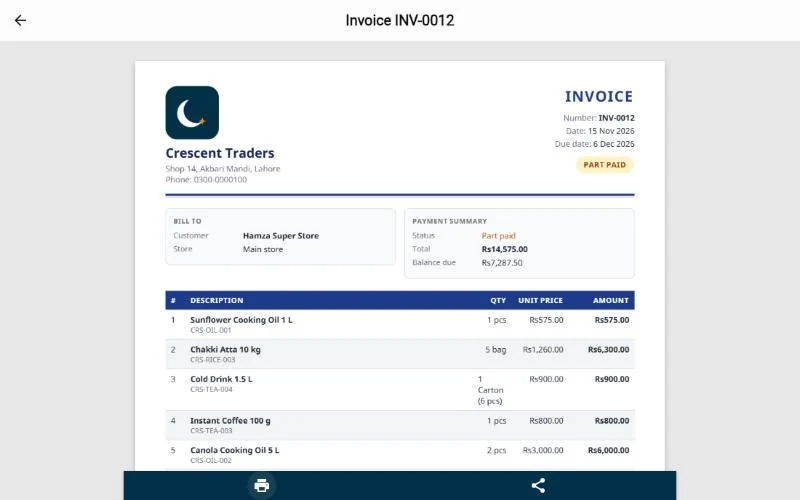
In Settings → Region & money choose your currency symbol (Rs), decimal places and date format. If your business never deals in paisa, set decimals to 0 and every screen, PDF and Excel file follows.
Every invoice opens as a PDF that you can print, save or send on WhatsApp straight from your phone. Customers get a proper document, and you get paid faster.
Yes. Set the next number in Settings → Document numbers to follow your last old invoice. Numbers can only move forward, never back.
No. Tax and print settings apply to new documents only. Old invoices keep exactly what they were issued with.
Yes. Choose the 80 mm receipt size in Settings → Printing for cash sales at the counter.
Only the business owner, or a staff role you give the "Manage settings" permission. Every change is written to the activity log.


Two kinds of sale, two jobs. When to use a cash sale and when a credit invoice, so your cash, stock and customer balances always add up.
Read the article
Sales are not profit. Read a Profit & Loss report line by line with a simple shop example, and see what really makes you money.
Read the article
You checked October, filed the numbers, and then someone edits an old invoice. Period lock in BIZBEAT stops changes to closed months, so your books stay final.
Read the article