Read your Profit & Loss in 5 minutes (even if you hate accounting)
Sales are not profit. Read a Profit & Loss report line by line with a simple shop example, and see what really makes you money.
Read the article
In a distribution business, one order passes through many hands. The order booker writes it at the shop. Someone in the store packs it. The dispatcher puts it on a vehicle. The driver delivers it. And between each step there's a phone call: "Is it ready?" "Which van?" "Did he deliver?"
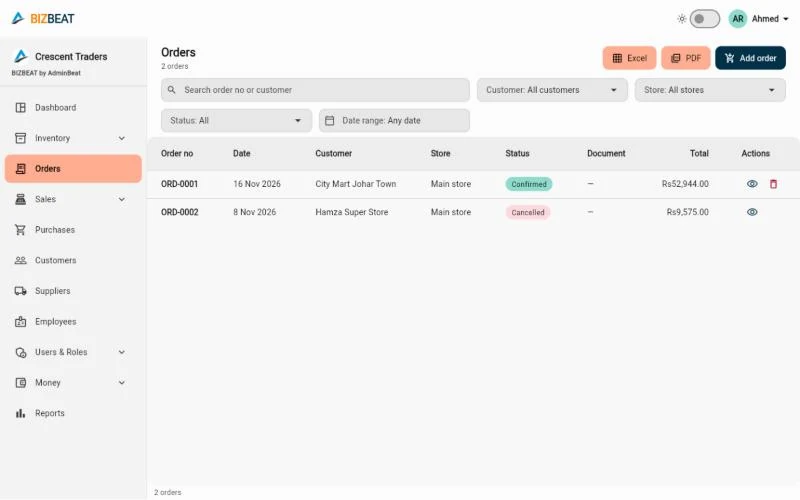
BIZBEAT's order workflow replaces those calls with clear stages that everyone can see.
Under Settings → Orders each business picks one:
Each job is a role with its own permission:
| Role | Can do |
|---|---|
| Order taker | Create and send orders; sees only his own orders |
| Store | Pack orders, enter packed quantities |
| Dispatcher | Assign transporters, send out, take back |
| Transporter | See My deliveries, mark out and delivered |
The transporter's My deliveries screen lists today's orders with shop name, address, a tap-to-call button and the total, made for a phone in one hand.
A bell in the app shows each person the orders that need them: new orders for the store, ready or short orders for the booker, assignments for the driver. Each person can switch alerts off in their profile.
Every order also has a timeline: who placed it, who packed it, who assigned it, when it left and when it was delivered. When a shop says "we never got it", you can see exactly what happened.
That's what makes it safe to hand the app to a whole team.
No. Orders don't move stock or money. Stock goes down when the order is turned into an invoice.
The store enters the quantity it could pack. The order becomes "Ready – short", the booker is told, and the invoice charges only the packed quantity.
Only if you give his role "View all orders". Without it, he sees only his own.
Today alerts appear in the app's bell while it's open. Phone notifications are planned as an upgrade for distribution businesses.


Sales are not profit. Read a Profit & Loss report line by line with a simple shop example, and see what really makes you money.
Read the article
You checked October, filed the numbers, and then someone edits an old invoice. Period lock in BIZBEAT stops changes to closed months, so your books stay final.
Read the article
Check today's sales from home, create an invoice at a customer's shop, or approve an order on the road. One account works on your phone, tablet and laptop.
Read the article